Guides
WooCommerce SEO Optimization: A Store Owner's Guide
WooCommerce SEO optimization starts with the things WooCommerce gets wrong by default: clean permalinks, crawlable filter URLs under control, complete product markup, unique copy and a fast theme.
By SEORecheck Research Team, SEO auditorsPublished 10 min read
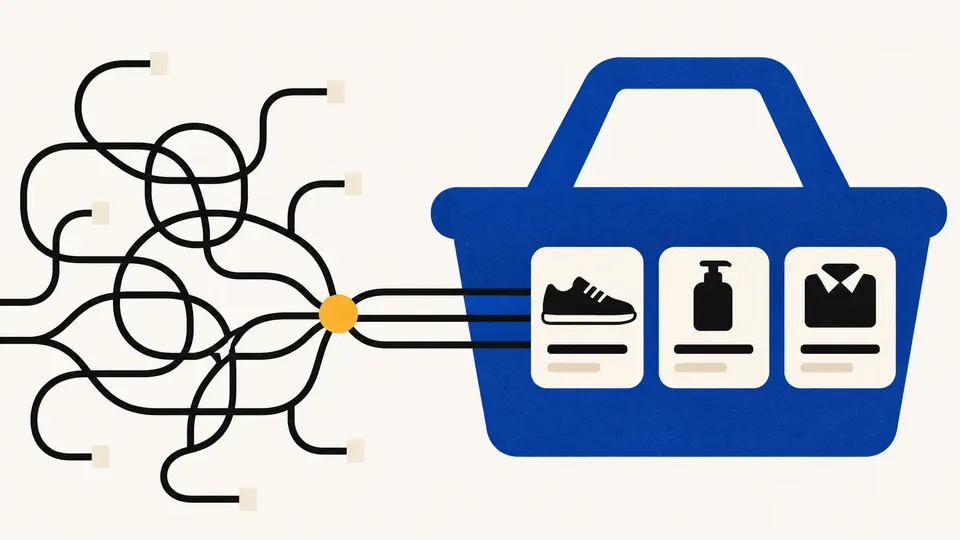
WooCommerce SEO optimization means setting up a WordPress store so search engines can crawl, understand and rank its products and categories. In practice that comes down to stable permalinks, keeping filter, sort and cart URLs under control, adding the product markup WooCommerce leaves out, unique product and category copy, and a theme and plugin setup that stays fast.
WooCommerce gives you a solid base. It outputs product structured data, works with WordPress sitemaps and lets you choose your URL structure. It also leaves plenty to you, and most stores lose rankings in the gaps. This guide works through those gaps in the order they usually matter.
What does WooCommerce handle for SEO out of the box?
WooCommerce handles more than many store owners expect. It creates clean, readable product URLs once WordPress permalinks are on, and it adds Product JSON-LD to single product pages. Out of the box, though, it doesn't control filter and sort URLs, write unique copy, set titles beyond the defaults, or add full merchant data.
Here is the split in practice:
| Area | What WooCommerce does by default | What you (or a plugin) must do |
|---|---|---|
| Product URLs | Builds /product/name/ URLs and lets you choose a base |
Pick a structure once and redirect if you ever change it |
| Category URLs | Uses /product-category/ as the base |
Decide whether to keep or rename it, then keep it stable |
| Structured data | Outputs basic Product JSON-LD (name, image, description, SKU, offer, availability) | Add brand, GTIN, shipping and return details; fix conflicts with plugin markup |
| Filter and sort URLs | Creates parameter URLs for sorting, layered navigation and add-to-cart | Stop crawl waste and duplicate pages |
| Titles and descriptions | Uses the product name | Write templates and unique copy, usually through an SEO plugin |
| Sitemaps | WordPress core or your SEO plugin lists products and terms | Keep only indexable, canonical URLs in the sitemap |
| Speed | Depends entirely on your theme, hosting and plugins | Measure Core Web Vitals and cut the extra weight |
If your store runs on WordPress, the general platform checks in our WordPress SEO audit guide also apply. Everything below is specific to WooCommerce.
Which WooCommerce permalink structure is best for SEO?
Any readable, stable structure works. What matters is choosing one and never changing it without redirects. WooCommerce offers a default /product/ base, a shop base, a shop base with category, and a custom base. The simplest option, a short product base without categories, is the safest for most stores.
According to the WooCommerce permalinks documentation, the default category base is product-category and the default tag base is product-tag. The same page warns that changing permalink structures updates existing product URLs, and old links "will return 404 errors unless you set up redirects."
Category paths inside product URLs (/shop/hoodies/hoodie-with-logo/) look tidy, but they tie the product URL to its category. A product sitting in several categories needs one consistent path. In WooCommerce 10.5, the developer advisory on product permalink changes changed which category gets picked: it is now the deepest one in the hierarchy. WooCommerce says its canonical redirect function sends old URLs to the new ones with a 301. Even so, after any update that changes URLs:
- crawl the store and confirm old product URLs return a single 301 to the new URL
- check that internal links, the sitemap and canonical tags use the new URL
- watch the Page indexing report for new 404s (see 404 errors and SEO)
How do you stop WooCommerce filter and sort URLs from wasting crawl?
Decide which filtered pages deserve to rank, then keep crawlers away from the rest with robots.txt rules or canonical tags. WooCommerce generates parameter URLs for sort order, layered navigation filters, price ranges and add-to-cart links. Each one can multiply into thousands of near-duplicate URLs that Googlebot crawls instead of your products.
Typical WooCommerce parameters include ?orderby=price, ?filter_color=blue, ?min_price=20&max_price=50 and ?add-to-cart=123. The exact names depend on your theme and filter plugin, so pull real examples from a crawl or your server logs before you write any rules.
Google's faceted navigation guidance names robots.txt disallow rules as the most effective way to prevent crawling of filter URLs. Canonical tags pointing to the unfiltered page are a weaker option that only reduces crawling gradually. If you do want some filtered pages indexed, Google recommends returning a 404 for empty filter results and keeping the filter order in URLs consistent.
A starting point for a typical store, to adapt to your real parameters:
User-agent: *
Disallow: /*?*add-to-cart=
Disallow: /*?*orderby=
Disallow: /*?*min_price=
Disallow: /*?*filter_
Two warnings. First, Google can't see a canonical or noindex tag on a URL it is blocked from crawling, so pick one method for each URL pattern. Second, if a filter combination has real search demand, such as "red running shoes", build it as a proper category page with its own copy instead of relying on a parameter URL. Our guides to ecommerce category page SEO and crawl budget optimization cover both decisions in depth.
Should WooCommerce product variations have their own URLs?
Usually no. One canonical product page with all its variations on it suits most WooCommerce stores. Give a variation its own crawlable URL only when it has real separate search demand, such as a colour people search for by name, and its own images and price.
Google's ecommerce URL structure guide recommends separate URLs for variants through either path segments or query parameters, with the parameter-free URL as the canonical. It warns against using fragments like #black, because Google doesn't use fragment identifiers in indexing.
WooCommerce variable products can add query parameters such as ?attribute_pa_color=blue to preselect a variation. If you want Google to understand the variants, its product variant structured data documentation explains ProductGroup with hasVariant and variesBy. It also requires that "the site must have the ability to preselect each variant directly with a distinct URL." The core WooCommerce markup doesn't output ProductGroup, so this needs a plugin or custom code.
Is WooCommerce's built-in product schema enough?
It is enough for basic eligibility, but not for complete merchant listings. WooCommerce outputs JSON-LD with the product name, image, description, SKU, price, availability and seller. Brand, GTIN, shipping and return details are missing unless you add them through a plugin or the woocommerce_structured_data_product filter.
The WooCommerce structured data wiki documents two filters, woocommerce_structured_data_product_offer and woocommerce_structured_data_product, for changing this output. It also repeats the rule that marked-up data should already be visible on the page.
Google's merchant listing structured data documentation lists shippingDetails and hasMerchantReturnPolicy as recommended offer properties. It suggests defining shipping and return policies at the Organization level rather than repeating them on every product. The same page says the price must be greater than zero for merchant listings, which is worth checking if you sell "price on request" or free items.
The most common WooCommerce markup problem is duplication: WooCommerce, the SEO plugin and a reviews plugin each output their own Product block, with different prices or ratings. Search the page source for application/ld+json, count the Product entities, and keep a single complete one. Validate a few products of each type (simple, variable, on sale, out of stock) with the Rich Results Test. The product page SEO audit has the full template-level checklist.
What should WooCommerce product and category pages contain?
Each indexable page needs a unique title, a useful description written for buyers, and facts that are visible in the HTML. Manufacturer descriptions copied across dozens of stores give Google no reason to rank your page over theirs. The same goes for empty category pages that show only a product grid.
Practical rules for WooCommerce:
- Titles: set an SEO plugin template, for example
{Product name} – {key attribute} | {Store}, then rewrite the titles of your top sellers by hand. - Product copy: add what only you know: sizing notes, materials, what's in the box, care instructions, and answers to the questions customers email you about.
- Short description vs long description: many themes show the short description above the fold and hide the long one in a tab. Text in tabs is fine if it's in the HTML on load. Check that it isn't fetched by JavaScript only after a click.
- Category descriptions: WooCommerce category archives have a description field. Use it for a short intro above the grid and a longer buying guide below it.
- Product tags: tag archives (
/product-tag/) often duplicate categories with less content. Noindex them or stop creating them, unless a tag page has real demand and real content. - Images: use descriptive file names and alt text, and modern formats served at the size actually displayed (see image SEO best practices).
Which WooCommerce pages should be noindexed?
Cart, checkout, my account and order pages have no search value and should carry noindex or be left out of search entirely. Internal search results (?s= with post_type=product), empty categories and thin tag archives usually belong out of the index too. Your sitemap should list only canonical, indexable product and category URLs.
Out-of-stock products are different. A product that is temporarily out of stock should stay live and indexable, with availability marked as OutOfStock in the markup. If you permanently discontinue a product, redirect it to the closest replacement or its category only when that page truly serves the same need. Otherwise let it return 404 or 410. Be careful with the WooCommerce setting that hides out-of-stock items from the catalog: it removes them from category grids and internal links, which can leave indexed product pages orphaned.
How do you make a WooCommerce store fast enough?
Measure first, then cut. WooCommerce speed depends on your theme, hosting, page builder and the number of plugins loading scripts on every page. Core Web Vitals targets are LCP ≤ 2.5 s, INP ≤ 200 ms and CLS ≤ 0.1 at the 75th percentile of real-user data.
The usual WooCommerce culprits:
- Plugin scripts loaded site-wide: sliders, wishlists, review widgets, chat, and tracking pixels that load on every page instead of only where they're used.
- Uncached dynamic fragments: cart counters and mini-carts that send an AJAX request on every page view.
- Heavy page builders and mega menus: large DOM trees hurt INP on category pages with many products.
- Oversized product images: gallery images uploaded at full camera resolution and loaded eagerly.
- Slow hosting under load: time to first byte rises during sales, exactly when traffic matters most.
Start with the Core Web Vitals report in Search Console, grouped by template. Fix the template behind the most poor URLs first, usually category or product pages. Our Core Web Vitals guide explains what moves each metric.
How do WooCommerce stores show up in Google Shopping and AI answers?
Connect a product feed to Google Merchant Center, and make sure product facts are visible in the HTML and crawlable. Feeds supply free listings in Shopping. AI answers depend on what crawlers can read on your pages and on the crawler access you allow in robots.txt.
The Google for WooCommerce documentation says the extension syncs products automatically to Merchant Center for free listings, Google Ads and other Google services, and that version 3.8.1 or later is required after Google's move to the Merchant API. Keep feed prices and availability identical to the page and the markup. Mismatches between them are a common reason for item disapprovals.
For AI search, the store-level checks are the same as for any shop. Allow the crawlers you want in robots.txt, check that prices and specs aren't injected only by JavaScript, and add Organization markup with sameAs links to your official profiles. The AI search optimization guide for ecommerce covers this in detail.
In what order should you fix WooCommerce SEO issues?
Fix what blocks indexing first, then what wastes crawling, then what improves rankings and clicks. A store with broken redirects or blocked products gains nothing from better titles. Use this order:
- Indexing blockers: "Discourage search engines" left on, noindex on products, robots.txt blocking
/product/, broken permalink redirects. - Crawl waste: filter, sort and add-to-cart URLs; tag archives; internal search pages.
- Duplicates: variation URLs, products reachable under several category paths, duplicate markup blocks.
- Templates: title and description templates, category intros, product markup completeness.
- Speed: the template with the most poor Core Web Vitals URLs.
- Content: unique copy for top sellers and the categories with the most demand.
To see these issues on your own store, a free SEORecheck audit crawls your product, category and filter URLs and flags indexing blockers, duplicate and parameter URLs, product markup gaps and slow templates, with example pages for each. You can see the format in the sample report. After you fix things, re-crawl and compare issue by issue rather than watching a single score.
Key takeaways
- Pick one WooCommerce permalink structure and never change it without 301 redirects. Re-check after major updates such as 10.5.
- Filter, sort, price and add-to-cart parameters cause most WooCommerce crawl waste. Block them or canonicalize them, but don't do both on the same URL.
- Built-in Product JSON-LD is a start. Add brand, GTIN, shipping and returns, and remove duplicate Product blocks from plugins.
- Keep cart, checkout, account and search pages out of the index. Keep temporarily out-of-stock products live.
- Fix templates first: one improved product or category template improves every page built on it.
- Keep feed, markup and visible page data consistent for Shopping and AI answers.